The OnTarget Precision Calculator gives the marksman a tool to
accurately measure and analyze bullet hole groups in their targets.
It provides measurements and information that is critical for evaluating
ammunition accuracy and consistency.
The OnTarget Precision Calculator has a simple and intuitive user
interface. You import images from your scanner or digital camera. Set the
target distance, bullet hole size, and point-of-aim. Bullet holes are
then positioned directly on top of the target graphic and information
about the group is generated immediately.
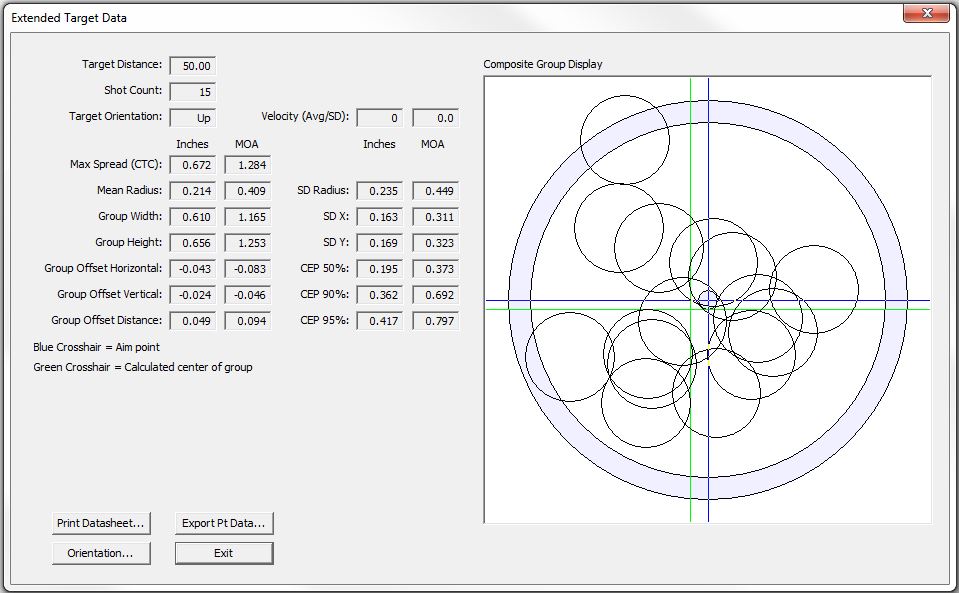
Group information includes: Max Spread CTC(center-to-center), height and
width, average distance to center, and group offset from point-of-aim.
The calculations are based on the center of the bullet holes regardless
of bullet caliber. Results are shown in either standard or metric
measurements along with minutes of angle (MOA).
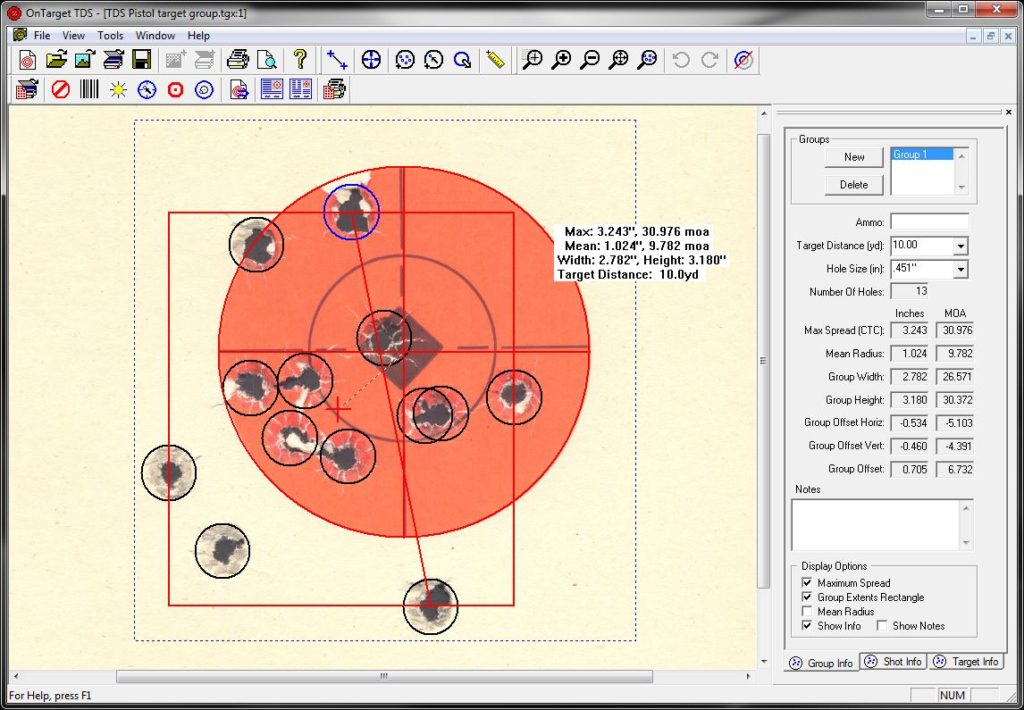
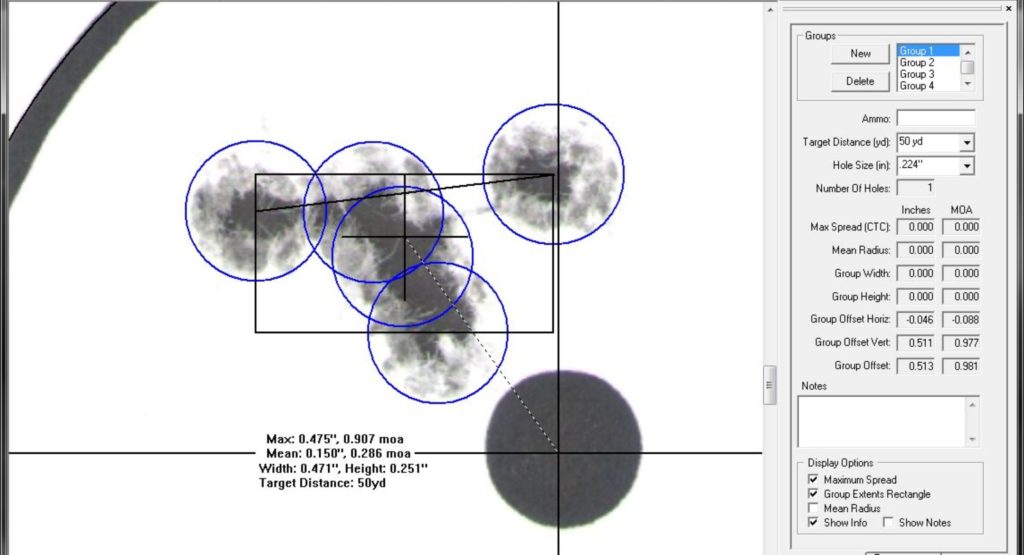
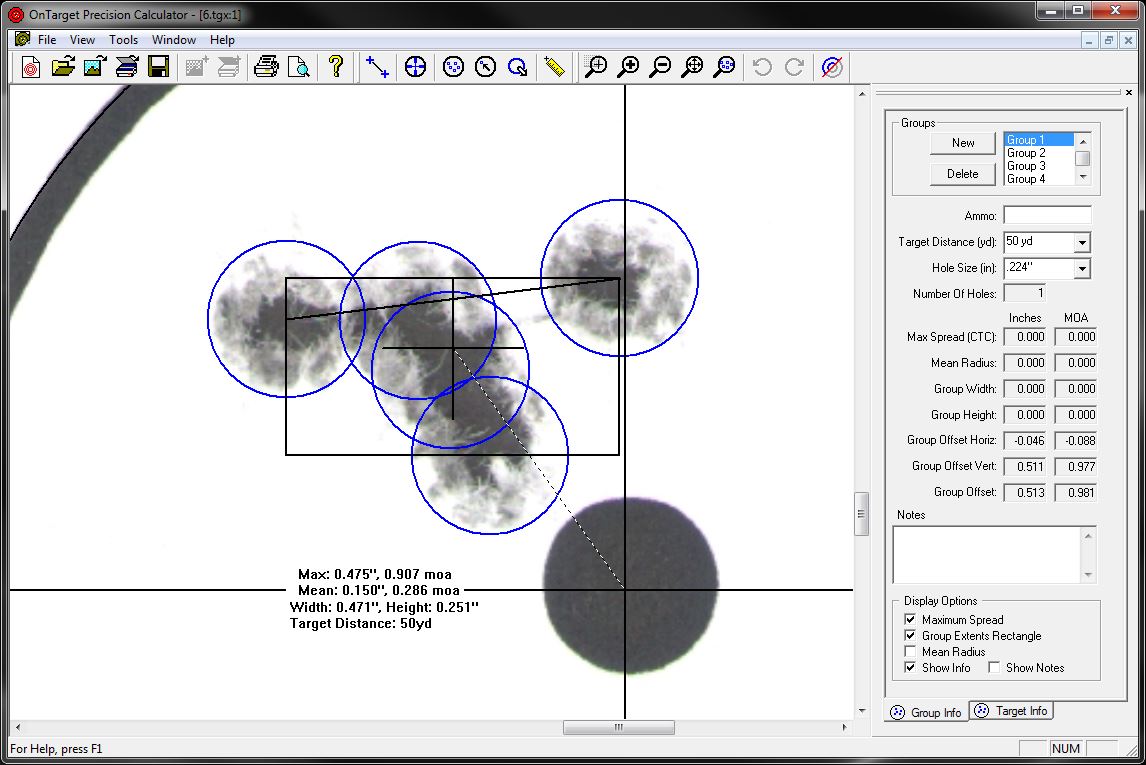
This is an image of the main screen. It shows the toolbars, target,
and group information. Click the image to view it full size.
Visit the
History
and
OnTarget FAQ
pages for more information on the program and to get
answers to the most common questions regarding OnTarget programs.
OnTarget v2.10 Feature List:
Calculates: group center, maximum group spread (CTC), average distance
to center, group width and height, and group offset from point of aim.
User selectable for standard or metric measurement display and data
output. All measurements are displayed in selected units along
with minutes of angle (MOA).
All project information, including the target graphic, is saved in the
project file. Files can be shared between users without recalibration
or adjustment.
Target project can be printed. All target information is shown on
the printout.
OnTarget v2.10 can open .tgx file created by all previous versions of the
program. Note: OnTarget v2.10 project files cannot be opened in the the
free version of OnTarget v1.10.
Zoom commands include: graphical zoom, zoom in, zoom out, fit window,
and zoom to selected group. Quick zoom-to-group command added, hold
down and click in the group to zoom.
Bullet holes can be selected and edited directly. No need to start over
with the group if you slightly misplace a hole.
Pre-defined values for common target distances and bullet hole sizes along
with user defined custom values.
All settings carry over from one project to the next. No need to
re-enter common setup information.
Integrated scanner support using Micrsoft's WIA (Windows Image Acquisition)
system. (Future upgrades will include TWAIN support.)
Target image can be rotated in 90 degree increments to correct orientation.
Imports and saves popular graphic file types. (.jpg .bmp, .tif, .png)
User defined point-of-aim on target. Aim point is used to calculate
group offset.
User selectable group text and notes displayed in Target View, in
saved graphics, and on printed targets.
User selectable graphical elements for maximum spread, group extents, and
average distance to center in Target View.
Graphical ruler for measuring distances in Target View. Correctly scaled
regardless of zoom level or graphic source.
User selectable line thickness and color for the graphical elements
of the group in the Target View.
Entry fields for project title, date, location, name, and project notes.
The average values for all groups in the project is calculated and
displayed in the Target Info tab.
Easy to use "Set Reference" command for defining a known distance
on the target for correct scaling of calculations.
Popup menu in Target View for frequently used commands.
Numerous hotkey combination for frequently used commands. (Go to
the Help/Help Topics menu for more information.)
Oversized toolbars for easier use.
Measuring Group Size
There are several methods for measuring and calculating
the size of a group of bullet holes in a target. These methods
vary depending on the tools and equipment available but the goal
is always the same; determine the
center points of two or more holes in a target. Once you
know the position of the center points the group information can be
calculated very easily.
Traditional Methods
The two most common methods of measuring bullet hole groups
involve the use of calipers. Both methods are used to calculate the
maximum spread, or center-to-center distance, of the group. Let's
take a quick look at each.
In the first method a standard set of calipers is used to measure the
extreme distance to the outside edges of the holes in the group.
Then several holes are measured and an average size calculated.
Finally the average hole size is subtracted from the overall measurement
resulting in the group center-to-center distance.
The second method of measurement uses a set of calipers modified
to hold a pair of clear circlular templates along with an eyepiece for
optical magnification. The operator looks through the eyepiece,
aligns the two circles with the extreme holes of the group, and reads
the center-to-center distance directly from the caliper.
Both of these methods produce very accurate results and with
practice can be done rather quickly. The first method is more
commonly used because it can be done with a standard set of calipers.
The second method is used to certify groups because if its greater
accuracy.
OnTarget Method
OnTarget uses the center of the bullet holes to
calculate the group information. First an image of the target
is imported. The desired bullet hole size is set along with the
target distance, the point of aim, and the reference distance if
needed.
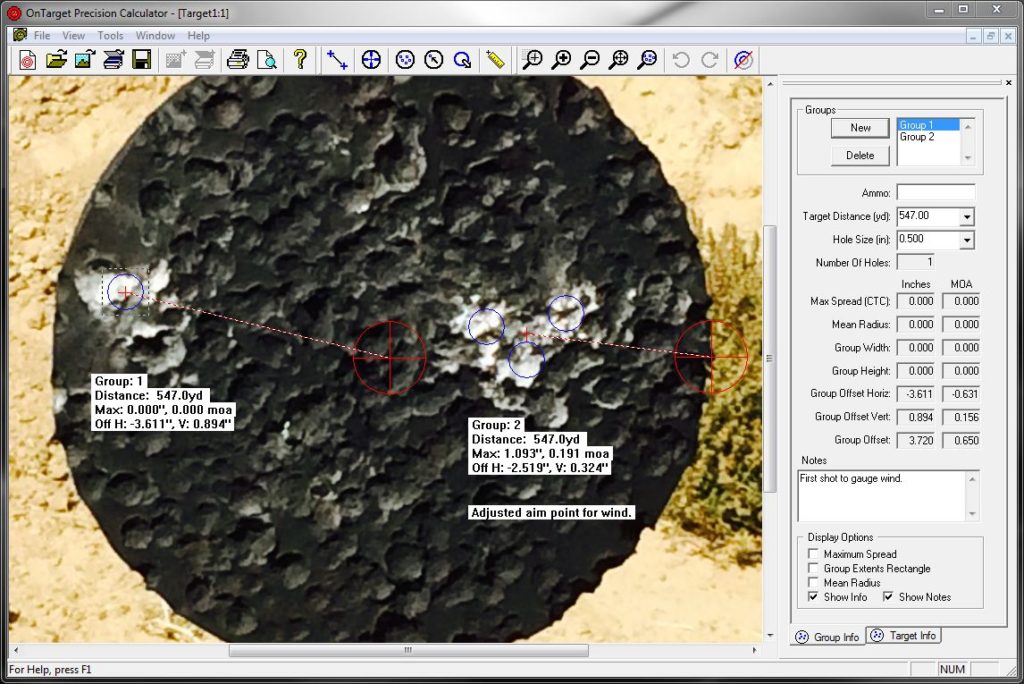
The user zooms in on the bullet holes that will be
added to the group, selects the hole input
tool and clicks in the Target View. A circle drawn at
the defined bullet hole size is displayed and moves with
the mouse. The user positions the circle over a bullet hole
and clicks the mouse button to anchor the hole. As each hole
is entered the group information is calculated
and displayed.
The use of the circle on the view of the target allows the
user to accurately position the center point of the hole. Even
if the bullet hole does not have a clean edge all the way around
the circle can be positioned accurately.